INSTALLING YOUR ESIM ON APPLE DEVICES
When you purchase an eSIM package on our website, you can install it automaticallyor via a QR code.
Automatic Installation (Recommended):
If you are purchasing directly from the iPhone or iPad where you want to use theeSIM, simply tap “Install eSIM” after completing your order and follow the on-screenprompt to activate your plan instantly.
Note: Automatic setup requires iOS 17.4 or later and works best in Safari. If yourdevice has an older iOS version, or if you opened our website via a link inside an app(such as WhatsApp, Line, WeChat, KakaoTalk, Instagram, or Facebook), automaticinstallation may not launch. In this case, please use the QR code setup describedbelow.
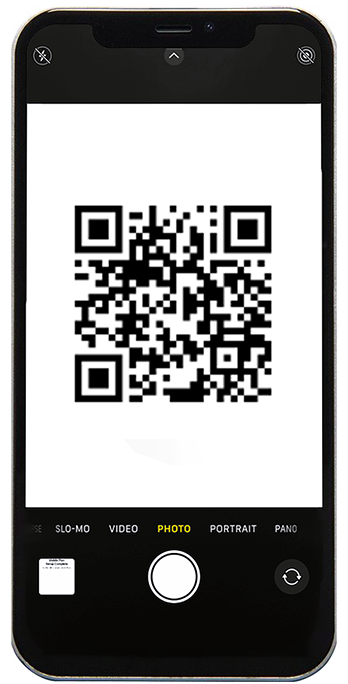
1) If you are purchasing from a computer, or automatic setup was not completed:Tap “Share QR code” to send the image to another device, such as a computer, tablet,or second phone.
If you are not ready to scan the QR code now, tap “Save QR code” to download it andscan it later from another device (or open it from your confirmation email).
Open the QR code on the second device.
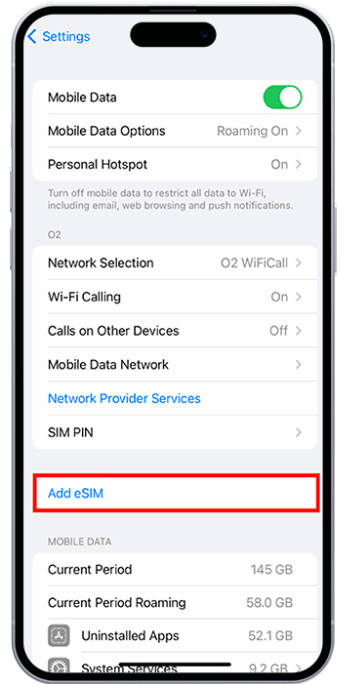
2) Go to Settings section on the phone you want to install the eSIM on:
Settings > Cellular > Add eSIM > Use QR code
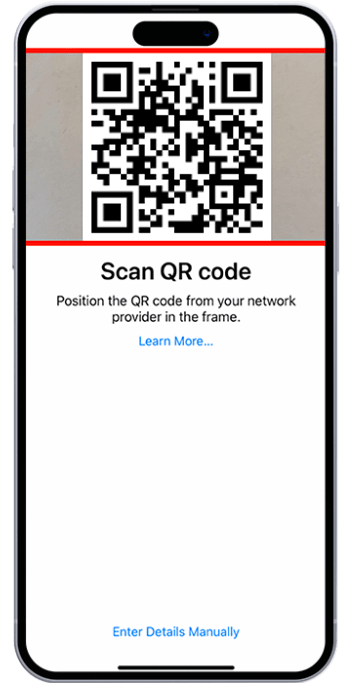
Scan the QR code displayed on the other device with your phone.
If you originally made a purchase and received the QR code on another device (such as a computer or tablet):
Simply scan the QR code as described above.
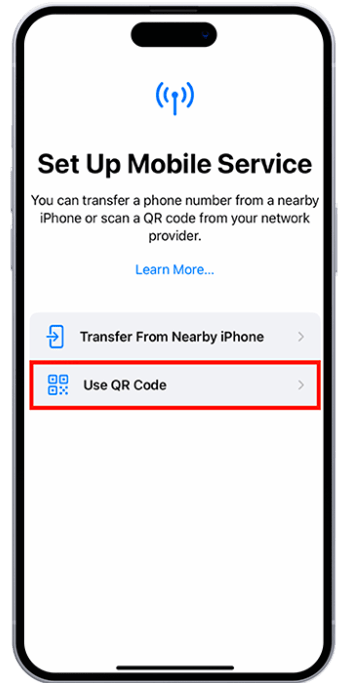
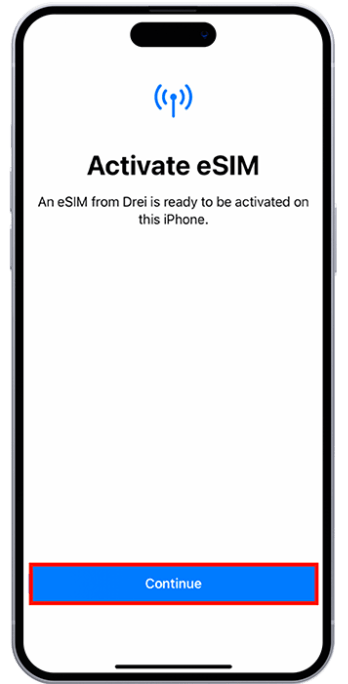
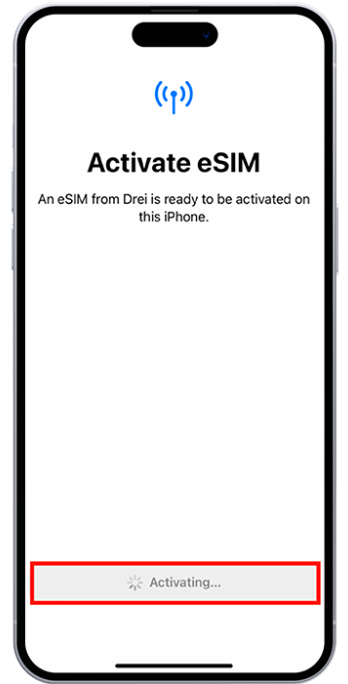
3) Tap "Continue" > the installation usually takes less than 1 minute > Tap "Done".
When you activate your Awinst Connect eSIM, your phone may display a different name — for example, Plus, Docomo, Optus, or another operator.
Don't worry, this is normal.
Awinst Connect works with several trusted global network providers and eSIM platforms. Our system automatically chooses the most reliable and cost-efficient network for your destination, so you get the best possible internet rates and stable coverage.
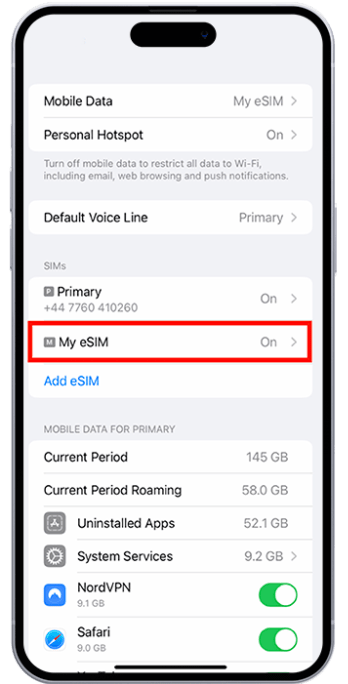
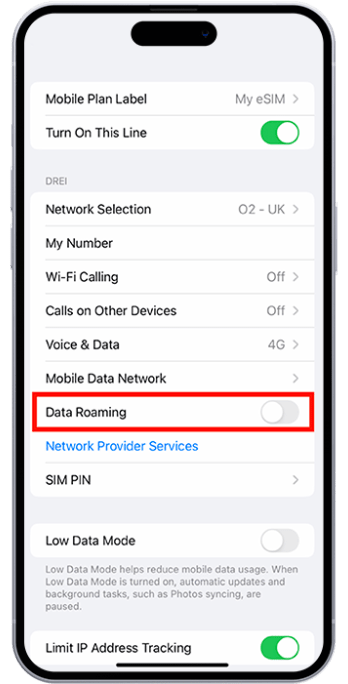
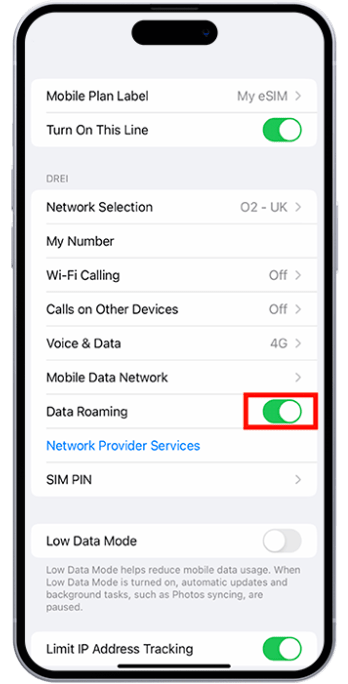
4) Go to "Settings" on your phone > tap "Mobile data/Cellular data" > enable eSIM as an active SIM card for data transfer > move the switch to the "On" position.